---
updatedAt: 2026-09-09T23:56:54.000Z
agentTools:
projectIndex: https://docs.shipscience.com/llms.txt
---
# Veho
Connect Veho to ShipScience for Claims, Invoices, and Tracking
## Overview
Connecting Veho to ShipScience requires two separate data sources:
* **Invoice emails **to import shipment and billing information
* **Tracking API **access to retrieve tracking events and delivery updates
Once both connections are configured, ShipScience can match Veho invoice data with tracking activity and identify eligible shipments for claims. Veho claims are currently submitted by ShipScience through email.
***
## Before you begin:
To complete the Veho connection, you may need assistance from:
* Your IT or email administrator
* Your Veho account representative
Before starting, confirm that you can:
* Create an automatic email-forwarding rule
* Allow emails to be forwarded to an external address
* Contact your Veho representative to request tracking API credentials
**NOTE**: Some organizations block automatic forwarding to external email addresses. If this applies to your organization, your IT team will need to approve or configure the forwarding rule.
***
## Connect Veho to ShipScience
Complete both steps below to connect Veho to ShipScience:
* **Part 1: **Forward Veho invoice emails to ShipScience.
* **Part 2:** Add your Veho tracking API key.
**NOTE**: Both steps are required to complete the connection.
# Part 1: Forward Veho Invoice Emails
Veho does not currently provide an invoice portal connection. Instead, Veho invoices must be forwarded to a dedicated ShipScience email address.
***
### Step 1: Navigate to Data Sources in the ShipScience Web Application
- Sign in to the **ShipScience Web Application**.
- Navigate to **Data Sources**.
- Locate "**Veho**".
- Click "**+ Add Account**"
***
### Step 2: Select "Veho Email Forwarding"
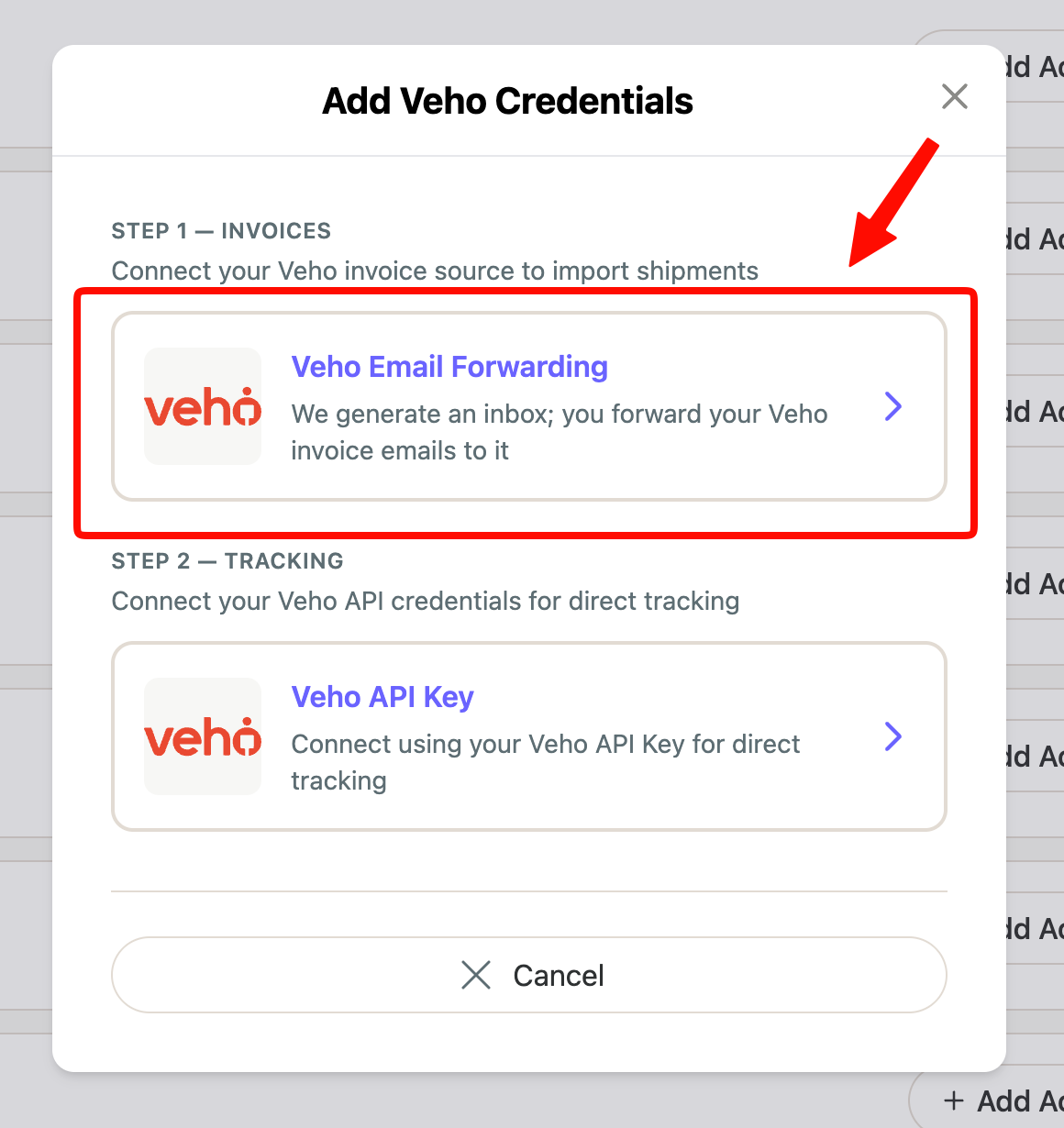
- Select "**Generate Credentials**".
- Copy the generated ShipScience email address to your clipboard.

- For Example: [carriers+35290f73be0acc3e@carriers.shipscience.com](carriers+35290f73be0acc3e@carriers.shipscience.com "carriers+35290f73be0acc3e@carriers.shipscience.com")
**NOTE**: This email address is unique to your Veho connection and should only be used for forwarding Veho invoice emails.
***
### Step 3: Create an Automatic Forwarding Rule
Configure your email system to automatically forward all Veho invoice emails to the generated ShipScience email address.
- Use the email address you copied from **Step 2**
Automatic forwarding is strongly recommended. Although invoices can be forwarded manually, an automatic rule helps prevent missing or delayed invoice data.
Your forwarding rule should:
- Identify emails containing **Veho invoices**
- Forward the complete **email** and its **attachments**
- Send the email to the address generated by ShipScience (See **Step 2**)
- Continue forwarding future Veho invoices **automatically**
**NOTE**: Your organization may block automatic forwarding to external email addresses. **Contact your IT team** if the forwarding rule cannot be enabled or if forwarded emails are rejected.
***
### Step 4: Verify Invoice Delivery
After the forwarding rule is configured, forward a recent Veho invoice to the ShipScience email address (**Step 2**)
ShipScience will process the email and its attachments. The ShipScience team can confirm whether the invoice was received and processed successfully.
***
## Setting Up Email Forwarding
Step 3 above describes what your forwarding rule needs to do. Here's how to set it up in common email clients:
**Gmail**
1. Go to Settings → See all settings → Filters and Blocked Addresses → Create a new filter.
2. Set **From** to your carrier's invoice sender address (or use **Subject** if invoices share a common subject line).
3. Click **Create filter,** then check** Forward it to** → **Add forwarding address**.
4. Paste your ShipScience email address (from Step 2) and confirm via the verification email Gmail sends.
5. Re-open the filter, check** Forward it to** with that address selected, and click **Create filter**.
**Outlook (Microsoft 365 / Outlook.com)**
1. Go to Settings → Mail → Rules → Add new rule.
2. Set the condition to match the carrier's invoice sender or subject line.
3. Under actions, choose **Forward to** and enter your ShipScience email address.
4. **Save the rule**.
***
**Blocked by IT?**
If your organization blocks automatic external forwarding, ask your email administrator to allowlist **_carriers.shipscience.com_** as an approved forwarding destination
(For Microsoft 365 admins: Exchange Admin Center → Mail Flow → Rules).
# Part 2: Add Veho Tracking API Access
ShipScience uses Veho’s tracking API to retrieve shipment tracking events and delivery updates.
***
### Step 1: Request an API Key from Veho
Contact your Veho account representative and request an API key that:
- Is associated with your Veho account
- Provides access to shipment tracking data
- Covers all applicable accounts or shipping locations
You can use the following request:
> Please provide an API key that ShipScience can use to retrieve tracking information for our Veho shipments. The key should include tracking access for all accounts and shipping locations associated with our organization.
***
### Step 2: Add the API Key to ShipScience
- Sign in to the **ShipScience Web Application**.
- Navigate to **Data Sources**.
- Locate "**Veho**".
- Click "**+ Add Account**"
- Click "**Veho API Key**"
- **Enter** the tracking **API key** provided by your Veho representative.
- **Save** the connection.
**NOTE**: ShipScience will validate the API key and begin retrieving tracking events.
***
### Step 3: Connection Validation
Your Veho connection is complete when:
- Veho invoice emails are being forwarded successfully
- ShipScience has received and processed an invoice
- A valid Veho tracking API key has been added
- ShipScience can retrieve tracking events
- Invoice shipments can be matched with tracking data
**NOTE**: The ShipScience team may contact you if an invoice cannot be processed or the API key does not provide the required access.
##