
Connecting via MCP
Connect an AI assistant to ShipScience over MCP.
Overview
MCP (Model Context Protocol) is a standardized way to connect an AI assistant, such as Claude or any other MCP-capable AI provider, directly to ShipScience, so you can manage claims and shipments in plain chat instead of the web app or API.
Per the shipped scope, MCP access lets a connected AI assistant:
- View information about your shipments and claims
- Create and update SimpleClaims
- Initiate disputes, including adding supporting information
Where MCP access lives today
-
Go to User Profile > MCP in the ShipScience web application:
https://app.shipscience.com/account_settings/mcp_connections
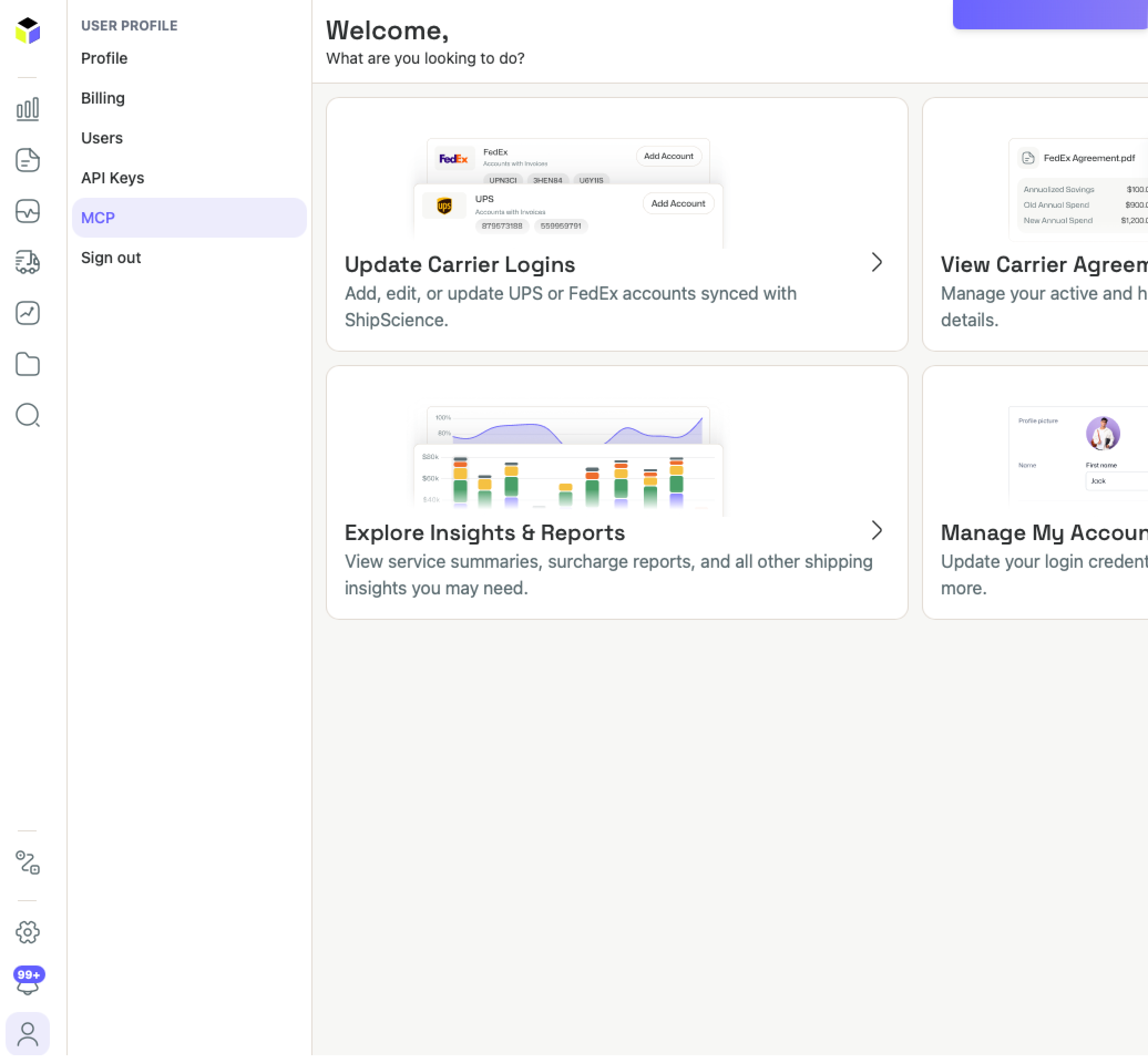
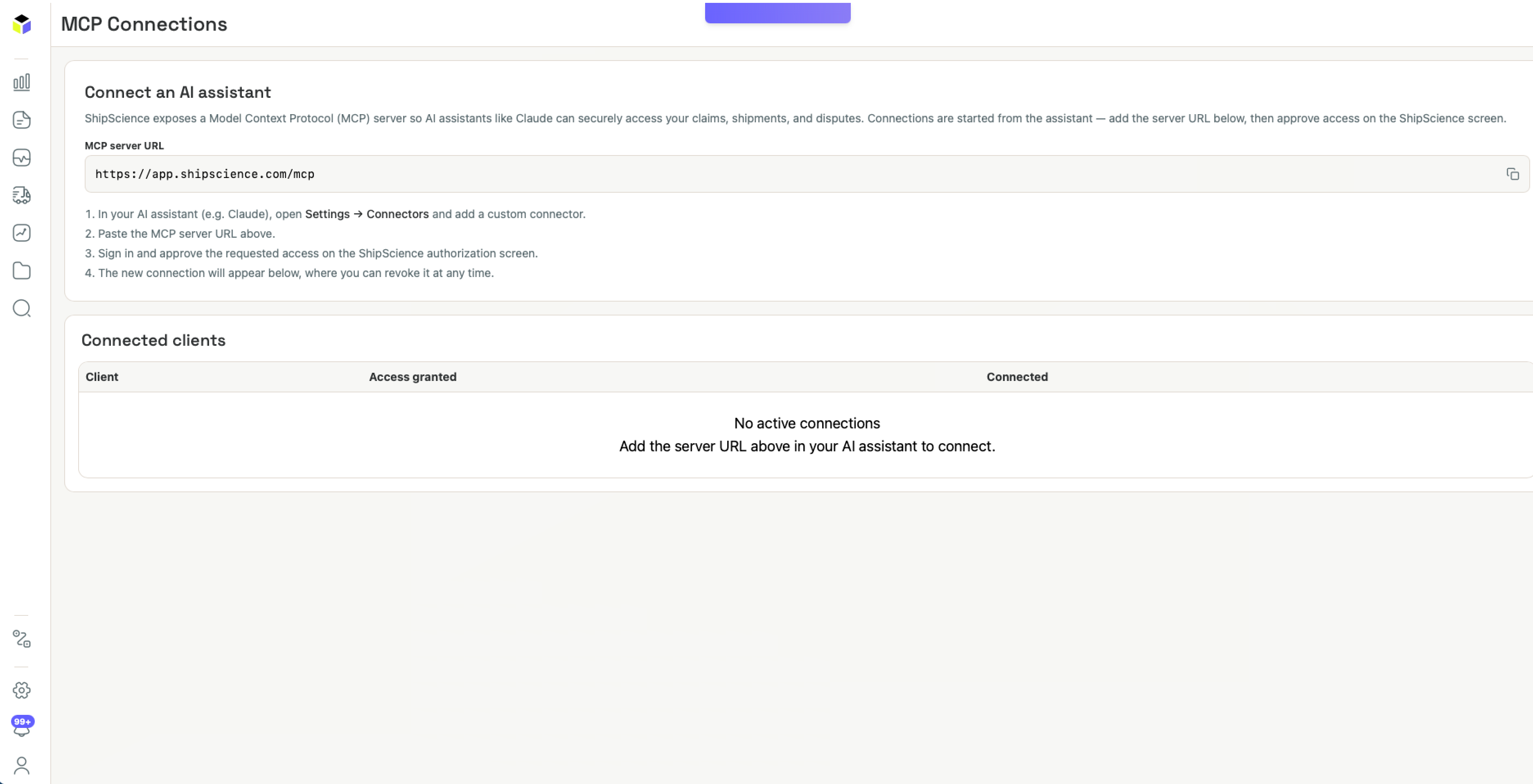
- NOTE: As a reminder, you can always access User Profile from the bottom-left corner of the web application user interface.
Steps to connect with your AI of choice:
- In your AI assistant (for example Claude), open Settings, then Connectors, and add a custom connector.
- Paste the MCP server URL: https://app.shipscience.com/mcp
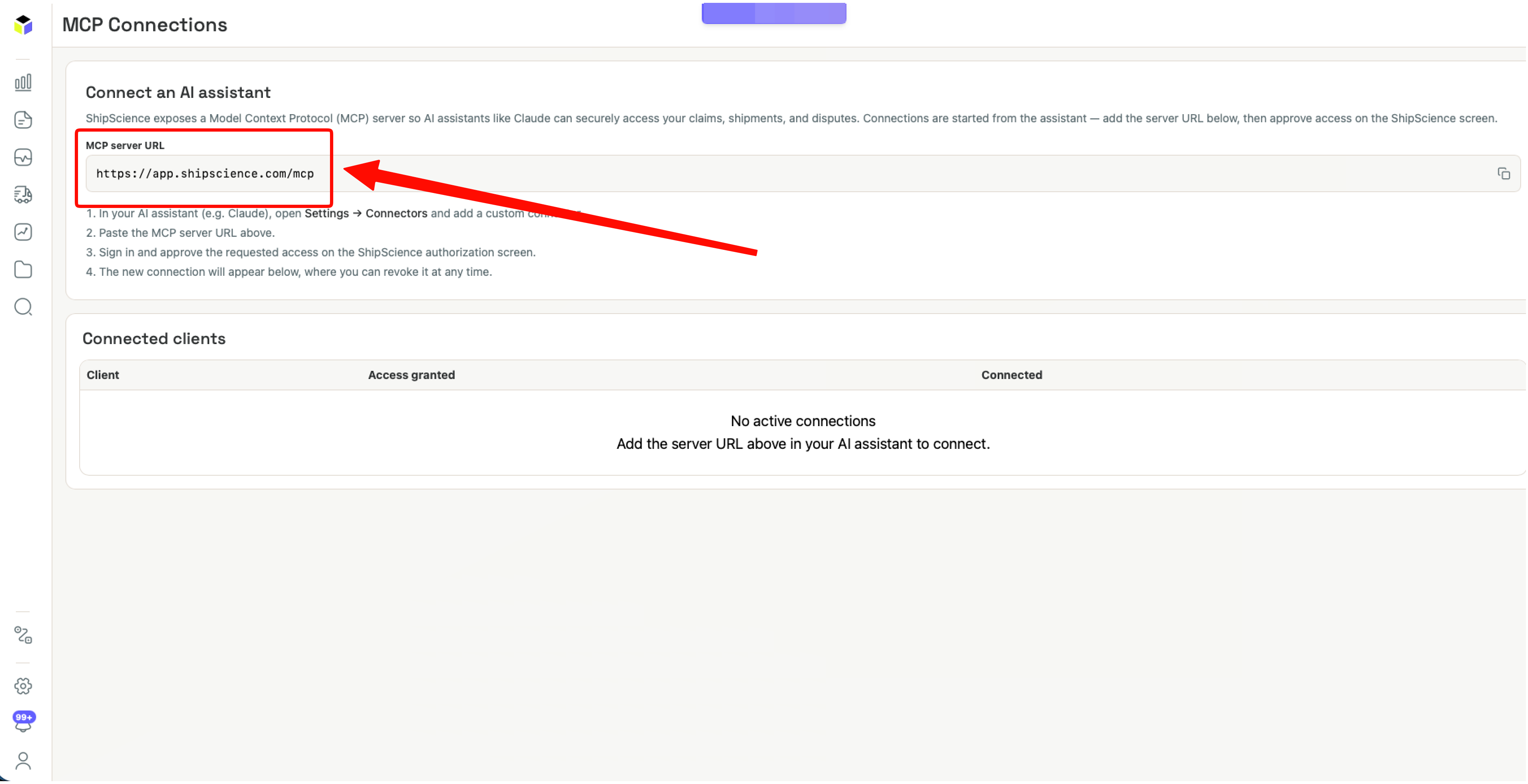
- Sign in and approve the requested access on the ShipScience authorization screen.
- The new connection will appear under "User Profile" > "MCP", where you can revoke it at any time.
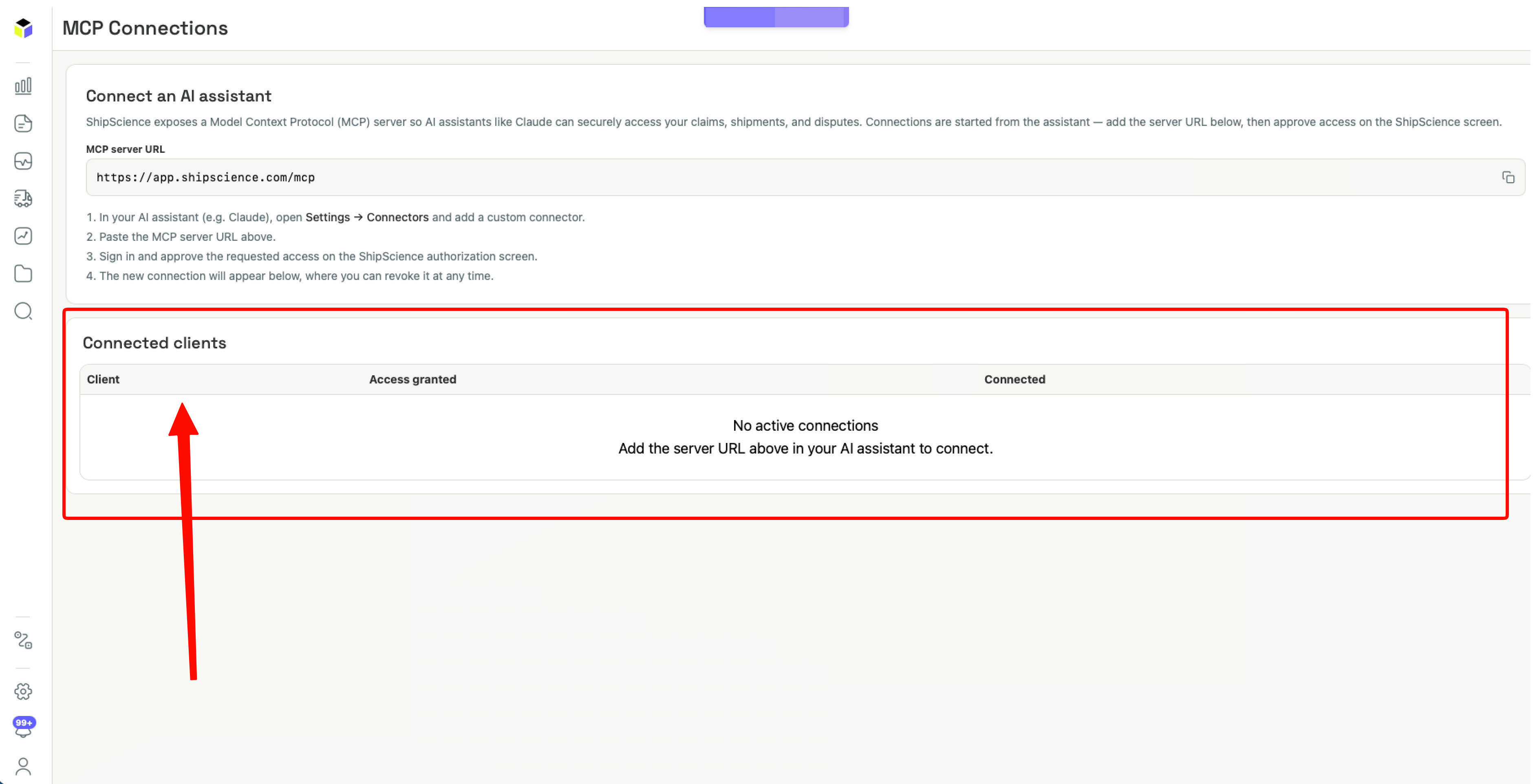
IMPORTANT NOTES:
- MCP access is enabled by your ShipScience account team, not self-service. Check with your ShipScience contact if you don't see the MCP section yet.
- Within an enabled account, account admins and the primary user have MCP access automatically. Other teammates need an account admin to grant them access from "User Profile" > "Users" (https://app.shipscience.com/account_settings/users).
- Access is checked in real time, so turning it off (at the account or user level) cuts a connection immediately, even for a session already in progress.
Updated about 5 hours ago
Did this page help you?